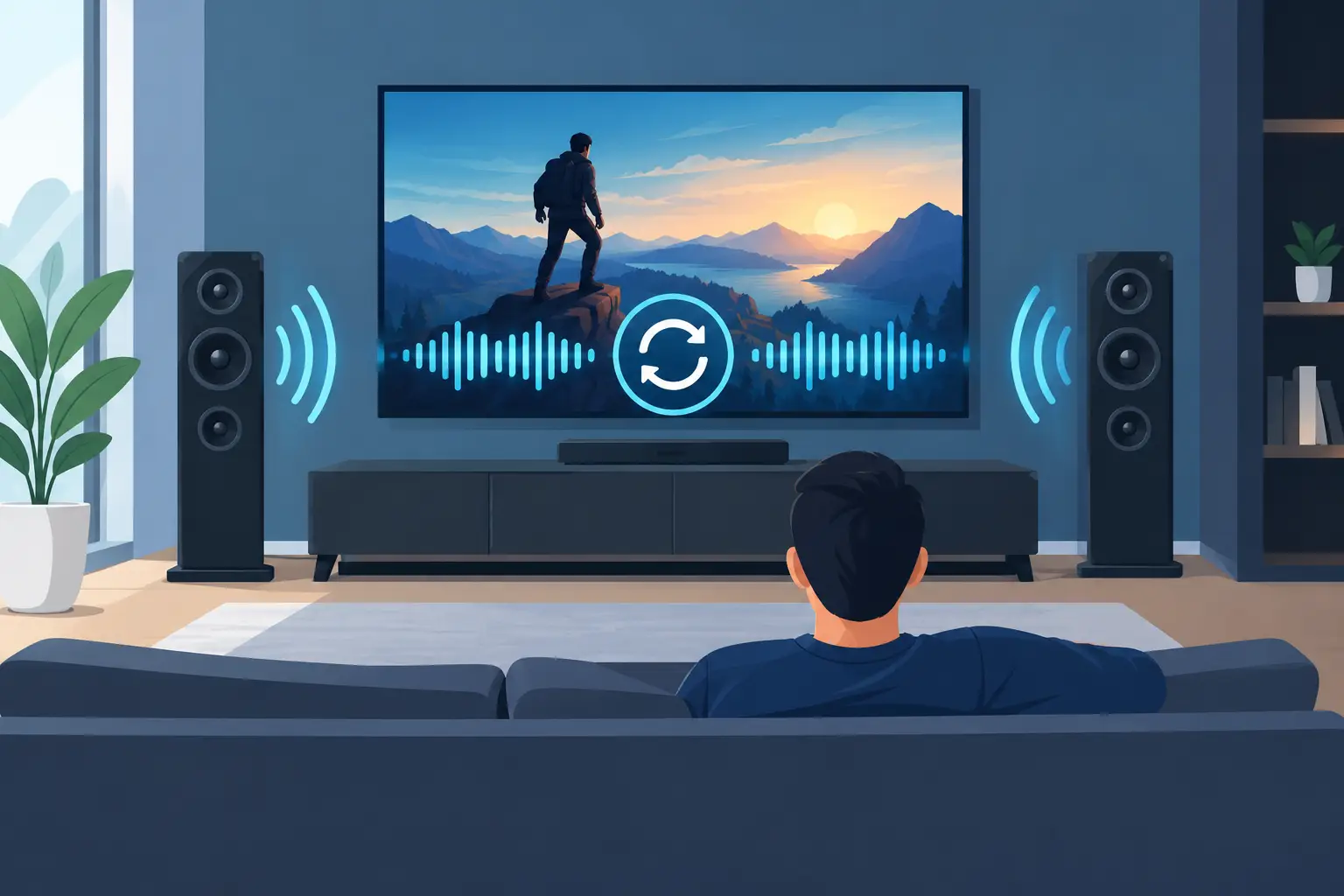
A movie can have a beautiful picture, clear sound, and a great room around it, yet still feel wrong when a character’s lips move before you hear the words. That small delay is distracting because our brains notice it immediately. The good news is that most homeowners can fix audio sync without replacing their TV, soundbar, or receiver.
Audio delay is usually not a sign that a component has failed. More often, it is the result of several devices processing the same signal at different speeds. Modern TVs enhance video, streaming apps buffer content, and audio systems decode surround formats. A well-designed system accounts for those differences so dialogue feels natural and the technology stays out of the way.
Why audio and video fall out of sync
In a simple setup, a source sends video to a TV and audio to the TV’s built-in speakers. There are few opportunities for timing to drift. A home theater adds more capability, but it also adds more signal paths. A streaming device, cable box, gaming console, TV, soundbar, receiver, projector, and external speakers may all have a role in delivering one scene.
Video processing is a common cause. Features such as motion smoothing, noise reduction, dynamic contrast, and image sharpening can delay the picture while the sound continues on time. Audio processing can create delay, too, particularly when a soundbar or receiver is decoding surround sound, applying room correction, or converting a signal format.
The direction of the problem matters. If you hear dialogue before lips move, the audio needs to be delayed. If lips move before dialogue arrives, the audio needs to be advanced or the video needs more delay. Many settings describe this as “lip sync,” “AV sync,” or “audio delay.”
Start with the simplest way to fix audio sync
Before changing multiple settings, identify where the delay appears. Play the same familiar scene through more than one source, such as a streaming app and a cable box. If the problem occurs only in one app or on one device, the issue is likely at that source. If it happens everywhere, focus on the TV, receiver, soundbar, or the connection between them.
A full restart is worth doing before deeper adjustments. Turn off the TV and audio equipment, unplug them for about a minute, then power them back on in order. Start with the source, then the receiver or soundbar, and finally the display. This refreshes the HDMI connection, which can occasionally establish an incorrect timing relationship after an update or power interruption.
Next, confirm that your TV is sending audio through the intended output. If you use a soundbar or receiver, the TV should generally be set to its HDMI ARC or eARC output, rather than switching between external speakers and internal speakers. Make sure the HDMI cable is connected to the ARC or eARC-labeled port on both devices. Not every HDMI port handles audio return in the same way.
Adjust one setting at a time
Most TVs, soundbars, and receivers offer an audio timing adjustment. Start at zero if possible, then make small changes of 10 to 20 milliseconds while watching a close-up conversation. Large jumps make it difficult to tell whether the result improved.
If your sound arrives too early, increase audio delay in the TV, soundbar, or receiver. If your sound arrives late, reduce the delay. Some equipment only allows you to add delay, not advance audio. In that case, you may need to reduce video processing on the TV instead.
Avoid making timing adjustments in several places at once. For example, if the TV has an audio delay setting and the soundbar also has one, begin with one device. Stacking corrections can make the problem worse and leave the system confusing for everyone who uses it.
A practical order is to check the TV first, then the receiver or soundbar, and finally the source device. This helps preserve a consistent setting for all of the content you watch.
Check TV picture processing
If dialogue trails behind the picture, your TV may be adding extra video processing. Try turning off motion smoothing or selecting a movie, cinema, filmmaker, or game picture mode. These modes often reduce processing and can improve timing.
Game mode is especially useful for gaming consoles because it lowers video latency. It may slightly change the appearance of the image, so it is best used when playing rather than for every movie night. The right choice depends on whether picture enhancement or faster response is more valuable for that activity.
Review your audio format settings
Audio format choices can affect timing. Your TV may offer settings such as PCM, Dolby Digital, Dolby Digital Plus, passthrough, or auto. There is no single best setting for every system.
Passthrough can be a strong choice when a capable receiver or soundbar is handling surround sound, because it sends the audio format onward with less conversion by the TV. PCM can be more stable for certain older components or simpler speaker systems, though it may limit surround options. If a sync issue began after changing formats, return to the previous setting and test again.
When using eARC, verify that eARC is enabled on both the TV and the audio device. It supports higher-bandwidth audio formats, but both components and the HDMI cable need to support it reliably. A damaged or outdated cable can cause dropouts, handshake problems, or inconsistent behavior that looks like an audio sync problem.
Test the entire signal path
A home theater is only as dependable as its connections and configuration. Check that HDMI cables are firmly seated and that no adapters or splitters have been added unnecessarily. A short, certified high-speed cable is usually more dependable than an unknown cable that has been moved, bent, or reused through several upgrades.
If your components are connected through a receiver, test whether the delay changes when you route a source directly to the TV. This is not necessarily a permanent solution, but it helps isolate the cause. If direct connection resolves the issue, the receiver’s processing, HDMI settings, or firmware may need attention. If the delay remains, look more closely at the TV or source device.
The same approach works with a soundbar. Test a built-in TV app, then test an external streaming device. If built-in apps are in sync but the external device is not, the streaming device’s audio settings or its HDMI connection may be the issue.
Keep firmware current across the system. TVs, streaming devices, receivers, and soundbars receive updates that can improve compatibility and correct known timing issues. Update one device at a time, then test with familiar content before changing anything else.
When the problem is intermittent
An occasional delay that appears only after switching inputs or waking the system is often an HDMI communication issue. It can be frustrating because everything may work perfectly once the system has been restarted. Simplifying the connection path and confirming compatible settings usually provides a more lasting answer than repeatedly adjusting audio delay.
Intermittent sync problems can also come from specific broadcasts or streaming programs. Live programming sometimes has its own timing inconsistencies before it reaches your home. Test several sources before assuming your equipment is at fault.
If the delay changes from one program to another, avoid chasing it with a new setting every time. Find a setting that works for most content, then investigate the outlier source. Constant adjustments make a system harder to live with and can mask the actual cause.
When professional troubleshooting makes sense
A professionally installed theater should feel consistent regardless of who picks up the remote. If your system needs frequent resets, loses sync when switching sources, or has different delays across rooms, the issue may involve system design rather than a single menu setting.
This is especially true in homes with distributed audio, a receiver feeding multiple displays, projector setups, or a mix of newer and older components. Correcting the timing may require examining signal routing, audio processing, display settings, cable performance, and the way control commands are being sent. The best correction is often the one that removes extra complexity instead of adding another workaround.
For Northeast Ohio homeowners, Tri-County Technology can evaluate an underperforming entertainment system, identify where delay is being introduced, and create a cleaner, more dependable path for sound and picture. The goal is not more settings to manage. It is a movie night where voices, music, and images simply feel right from the moment you press play.

No responses yet